Categories
With AI Max, you can opt in to text customization. That means Google can create new assets, such as RSA headlines, callouts, and sitelinks.
Of course, auto-created ads aren’t for everyone. But they help busy advertisers test more assets without having to write every word themselves. And they’re especially useful for ad group-level assets (extensions).
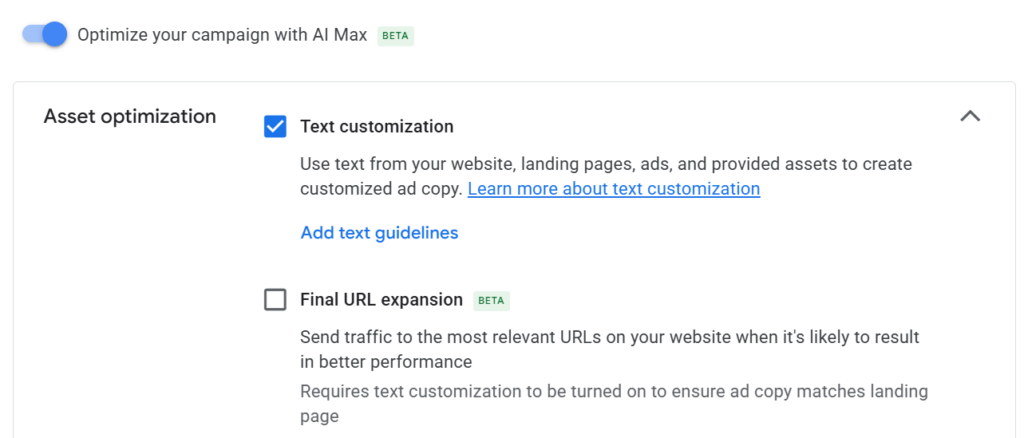
In our experience, the biggest reason users don’t use text customization is the lack of control over ad messaging. Google-created copy often underperforms or doesn’t accurately describe the business and its offers.
Google has introduced text guidelines that let you direct how the AI writes your ads. In today’s article, we’re going to focus on how to craft and test guidelines for better auto-created ad assets.
Term exclusions
Term exclusions are very straightforward: list up to 25 words or phrases you don’t want in your ads.
If you have legal, brand, or other constraints, this is the place to add them. Here’s an example:
For a trademark specialist, Google created an asset stating that the company was a USPTO lawyer. The USPTO is a government agency, so this claim is false. They added USPTO to their term exclusions.
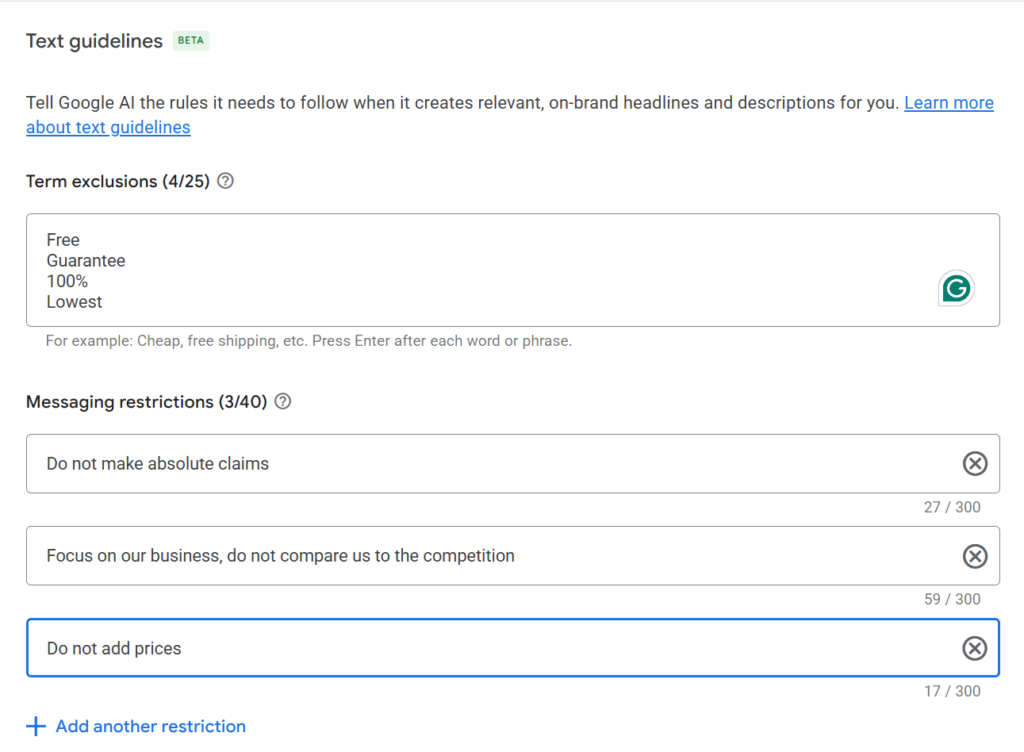
Let’s say you don’t want to use discount-related terms like bundle, actual prices, or 2 for 1. You won’t have enough space to cover all the possible variations.
That’s where we turn to messaging restrictions.
Messaging restrictions
Messaging restrictions are instructions you give the AI for writing your ads. You can add up to 40 restrictions with 300 characters each.
For instance, you might say, ‘don’t use prices in our ads.’ Along with some examples, that should keep the AI from adding prices to your ad copy.
However, it’s hard to anticipate all the ways the AI might write ads. That’s why it’s helpful to combine human input and Google’s Gemini to create your guidelines.
Using Gemini to create messaging restrictions
It’s important to use Gemini for this exercise. It’s closest to the system Google uses to generate your ads.
Step 1: Create examples
Start with our favorite RSA prompt to create 50 headlines.
Review the assets to see if they accurately describe your business. If they don’t, think of a guideline for the AI. For instance, ‘We are a B2B company; the ads should appeal to buyer agents, not consumers.’
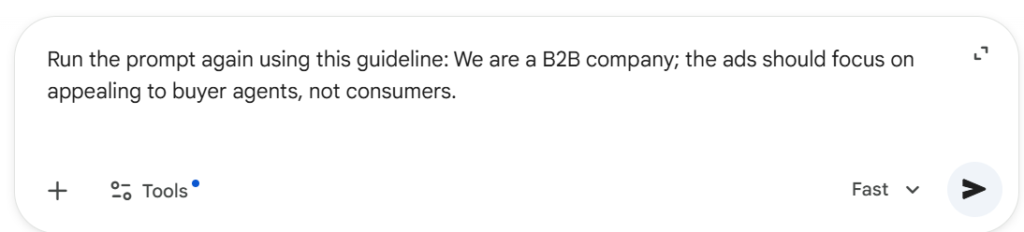
Next, we want to push the AI to create a wider variety of assets with instructions like:
- The assets should be highly promotional
- The assets should focus on pre-qualifying B2B buyers
- The assets should experiment with new offers
- The assets should focus on our authority
- The assets should showcase why we’re better than competitors
- Focus on high CTR assets, like clickbait headlines (one of our favorite guidelines)
- The assets should focus on our offers: download a free whitepaper, take a free trial, see our product in action, chat with us, or get a free consultation
You’ll want to adjust these examples based on your business. If your business has style or tone-of-voice guidelines, it’s useful to include them.
To help the AI focus, only run one of these instructions at a time with your baseline prompt.

Remember: The goal of this exercise isn’t to create ads you’ll use. The goal is to see which statements result in unusable assets.
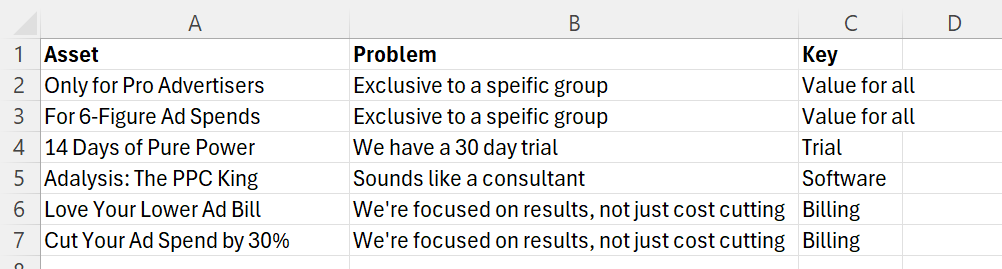
Each time you find assets you don’t like, make a note of them in a spreadsheet. You’ll then have examples at hand when creating your messaging restrictions. A short ‘key’ with the main reasons will help you sort and group them in Step 2.
Look for phrases that:
- may not be legal/acceptable in your industry
- aren’t accurate
- make promises you don’t fulfill
- don’t describe your business and offer well
- don’t match your preferred style/tone
Step 2: Write your guidelines
Once you’ve collected unsuitable assets, sort them by the ‘key’. This makes it easier to spot patterns and write targeted guidelines.
Each guideline should cover a single concept. Don’t bundle multiple ideas into one instruction.
For example, this guideline bundles three separate concepts, which gives the AI too much to process at once.
When you mention a free trial, it should be clear that it’s a 30-day trial. Don’t talk about reducing bills or ad spend. Our software is built for PPC agencies and brand advertisers with a range of spend levels; don’t exclude groups of PPC analysts.
Instead, write one messaging restriction per concept and include examples:
- When you mention a free trial, clarify that it’s 30 days long. The trial doesn’t require a credit card or billing information.
- Don’t make absolute claims, such as reducing ad spend, lowest price, 10x efficiency, highest APR.
- Don’t exclude parts of our target audience with phrases such as six-figure ad spend.
- Don’t include city or location names, such as the USA, United States, Europe, Italy, Rome, or Chicago.
- Don’t include prices, such as $45/day, $19.99, or $249 per year.
Then add term exclusions, such as:
- Competitor names
- Discount
- On sale
Step 3: Check your guidelines
Next, validate your guidelines with fresh output.
Rerun the RSA prompt and restrictions to confirm the initial output is acceptable. If yes, add one of the instructions, such as the clickbait titles. The aim is to see if the AI creates ads that don’t align with your messaging.
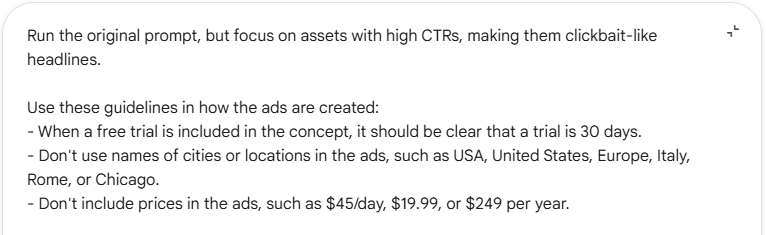
If the output contains assets you don’t like, then you’ll need to refine your guidelines. Repeat this step until the output meets your brand standards.
When you’re ready to test AI Max text customization, copy your restrictions into your Google Ads account.
Review your assets
Just because you created clear guidelines doesn’t mean you’ll want to use all of the AI output. You’ll need to review the auto-created copy regularly.
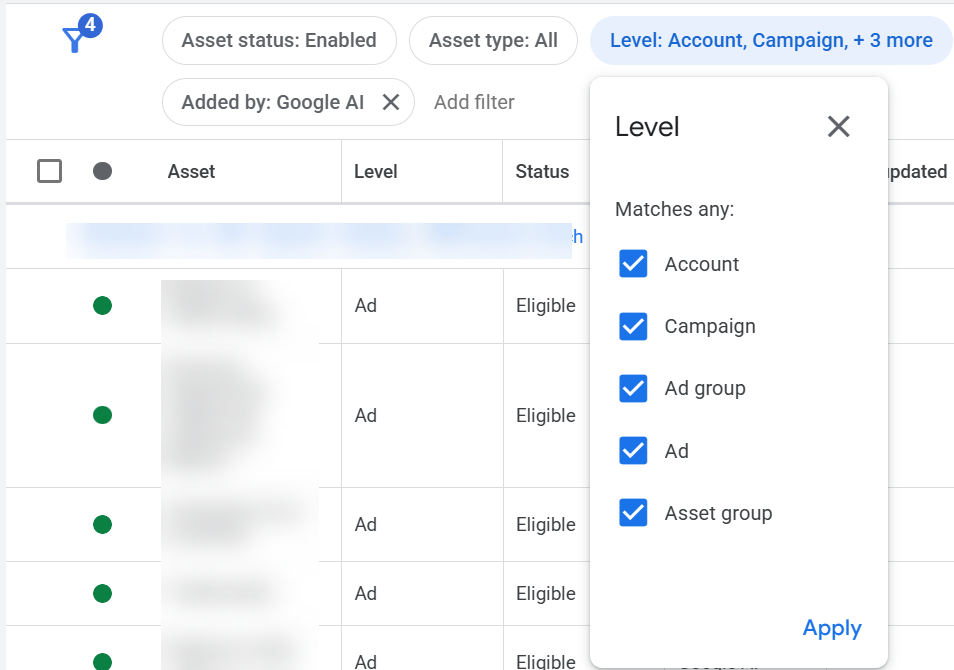
Start by going to your asset data and using these filters. The first ensures you’re viewing ad-level assets, which aren’t selected by default.
Next, filter by Google AI to ensure you’re only seeing what Google created.
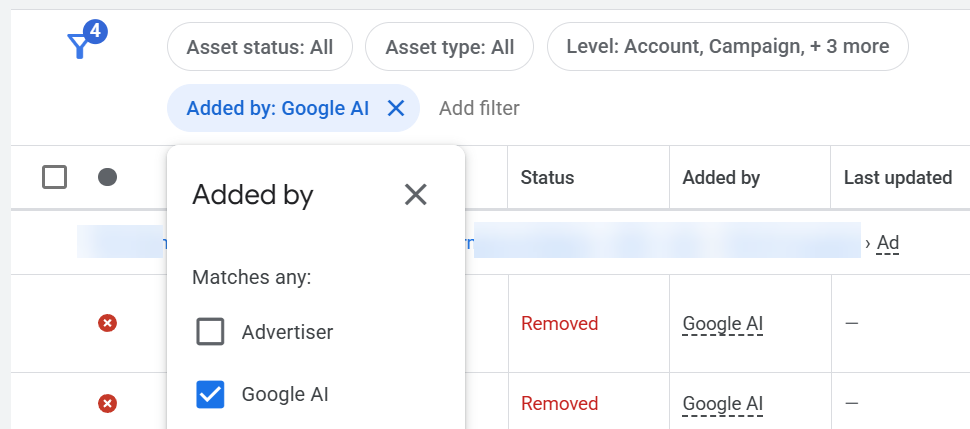
Remove any assets you don’t want to use. Finally, review your messaging restrictions and term exclusions to prevent similar output in the future.
Why this time investment pays off
This process may feel like a lot of work just to write text guidelines. In practice, it’s a one-time investment you can reuse across campaigns.
Ads are the only part of your account a potential customer actually sees. Searchers never see your bids, campaign settings, or keywords. Ads speak directly to users and convince them to explore your offer.
If you don’t have compelling ads, the rest of your account settings don’t matter. Clear guidelines help ensure your auto-created assets stay accurate, relevant, and persuasive.
Wrap-up
Auto-created assets aren’t for everyone. We have advertisers craft beautiful messaging and ads. Google’s AI rarely produces assets that outperform what these teams write themselves.
We have other advertisers who manage many SMB accounts and don’t customize ads for every ad group. Others don’t mix CTAs, relevant headlines, and compelling offers well. In these cases, Google AI can help round out the ads.
A real advantage of AI Max is ad group-level assets, such as callouts and sitelinks. For large accounts, customized assets at the ad group level can make the ads much more compelling. This is where Google does a good job.
Advertisers often delete about 25% of ad group-level assets. Usually, they’re not descriptive, accurate, or useful enough. However, generating the other 75% saves a lot of time. This is especially useful for advertisers who wouldn’t otherwise have the time to create them.
At present, using AI Max to create ad group-level callouts and sitelinks is very useful. Google still has work to do before it can consistently create good RSA headline assets.
As you experiment with AI Max, setting the guardrails is crucial. With this process and clear guidelines, you can steer Google to create engaging assets for your campaigns.
Share around the web


Related posts
View all

Improve performance
with
actionable
analysis


Leave a comment